Introduction to R and RStudio

Leykun (MSc)1 & Yebelay (MSc)2

1NDMC, EPHI and 2DMU & C4ED


April 28 - May 1, 2026

Introductions

Take few minutes to introduce ourselves.

Please share …

  1. Your name
  2. Your experience in R
  3. What you expect by the end of the training

Outlines

01. Module 1

  • Overview of R and R Studio
  • Workspace and R Objects
  • Reading and Writing data

02. Module 2

  • Data Management (dplyr, tidyverse)
    • Data Manipulation
  • Recoding Variables
  • Data merging
  • Data cleaning

03. Module 3

  • Data visualization (ggplot2)
  • EDA and Summary statistics

04. Module 4

  • Basic Statistical Analysis
  • Creating reproducible reports (Quarto)

Training objectives

  • Set up and utilize R & RStudio

  • Navigate R & Rmarkdown/Quarto scripts and RStudio projects

  • Basic operations in R/RStudio

  • Import and inspect data sets in R

  • Understand R data structures

  • Know how to get help

  • Managing data through filtering, summarizing, transforming, and joining

  • Visualizing data using the renowned ggplot2 package

  • Produce descriptive statistics and basic data analysis

  • Create reproducible Reporting using Quarto

Module 1: Learning Objectives

By the end of this module you will be able to:

  • Explain what R and RStudio are, and why they are useful in public health
  • Navigate the four RStudio panes confidently
  • Create and use an RStudio Project
  • Understand core R data types and structures
  • Import and export data in common formats (CSV, Excel, Stata, SPSS)

1. Why R?

  • It’s free and open-source software

  • It runs on many operating systems: Windows, Unix and (Mac) OS X.

  • Reproducible — your analysis code is a full audit trail

  • R produces high-quality graphics. Publication quality figures

  • It has a large and welcoming community of users.

  • Rich ecosystem — 23,000+ packages for survival analysis, GIS mapping, disease modelling, and more

  • It is flexible enough to be used to create interactive web pages and automated reports.

  • Widely used by WHO, CDC, and academic researchers

“R is not just a tool — it’s a way of thinking clearly about data.”

2. RStudio

What is RStudio? Why use it?

  • Best Integrated Development Environment (IDE) for R.

  • Powerful and makes using R easier

  • RStudio can:

    • Organize your code, output, and plots.
    • Auto-complete code and highlight syntax.
    • Help view data and objects.
    • Enable easy integration of R code into documents.
  • User-friendly interfaces

  • R is like a car’s engine

  • Rstudio is like a car’s dashboard (steering wheel, GPS, etc.) that makes the engine easier to use.

Download and Install R and RStudio

1. Download and install R

2. Download and install Rstudio

Tip

Always install R before RStudio.

RStudio Overview

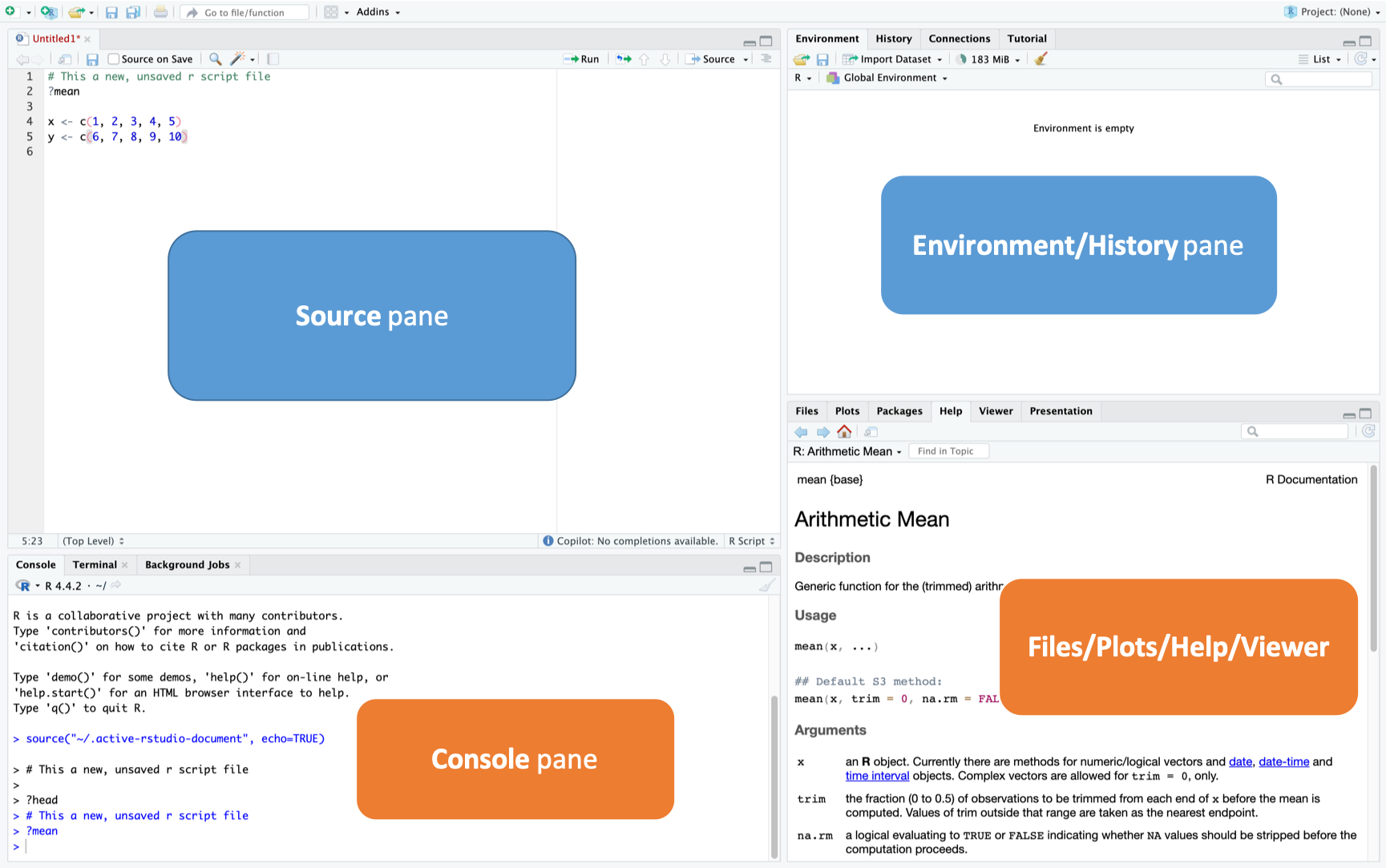
  • RStudio will open with 4 sections (called panes)

The Four Panes — Summary

Pane Location Purpose
Source Top-left Write and save scripts
Console Bottom-left Run code interactively
Environment / History Top-right See objects; browse past commands
Files / Plots / Help Bottom-right Navigate files; view plots and docs

Tip

Shortcut to run code: Place cursor on a line → Ctrl + Enter (Windows) or Cmd + Enter (Mac)

One Critical RStudio Setting

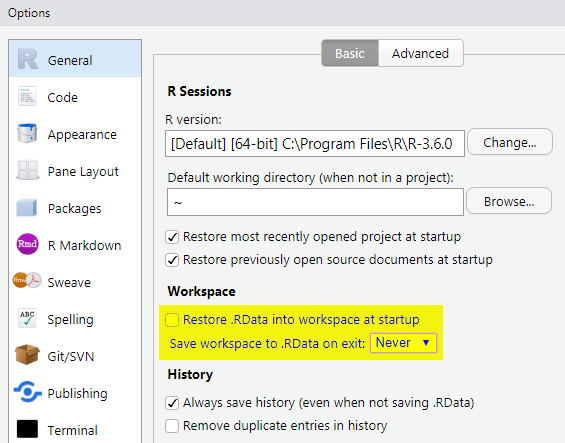
Before doing anything else, apply these settings for reproducibility:

Tools > Global Options > General > Basic

  • Uncheck “Restore .RData into workspace at startup”
  • Set “Save workspace to .RData on exit” → Never

This ensures a clean, reproducible workspace every session.

Getting Set Up: RStudio Projects

A Project keeps all your files (data, scripts, figures) in one folder and sets the working directory automatically.

Create a new project:

  1. Click the blue cube (top-right) → New Project
  2. Choose New Directory > New Project
  3. Name it (e.g., Basic-R-Training) and choose a location
  4. Click Create Project
Basic-R-Training/
├── data/         # Raw and cleaned datasets
├── scripts/      # R analysis scripts
├── figures/      # Saved plots
└── documents/    # Notes, reports

Key Benefits of RStudio Projects:

  • Automatically sets your working directory to your project folder
  • Makes file paths simple and relative (e.g., "data/my_data.csv").
  • Enhances reproducibility and collaboration.

R Basics: Objects in R

  • R is an object-oriented language. This means everything you create and manipulate in R—like numbers, text, datasets, and plots—is considered an object.

  • During an R session, objects are created and stored by name.

Results of calculations can be stored in objects using the assignment operators:

  • An arrow (<-) formed by a less than character and a hyphen without a space!. In RStudio (Alt + -)

  • The equal character (=).

Objects in R

Naming rules:

  • Object names cannot contain `strange’ symbols like !, +, -, #.

  • A dot (.) and an underscore ( _ ) are allowed, also a name starting with a dot.

  • Object names can contain a number but cannot start with a number.

  • R is case sensitive, X and x are two different objects

Examples:

First create a new object called ‘x’

Code
    x<-5
    x=5
    5->x # or

R Workspace

Objects that you create during an R session are hold in memory, the collection of objects that you currently have is called the workspace.

Code
ls()             # list the objects in the current workspace

Data Type

R has a wide variety of data types including:

  • Scalars,
  • vectors (numerical, character, logical),
  • matrices and arrays,
  • data frames, and
  • lists.

Vector

  • A set of scalars arranged in a one-dimensional array.

  • Data values are all the same mode(data type), but can hold any mode.

    • e.g:(-2, 3.4, 3), (TRUE, FALSE, TRUE), (“blue”, “gray”, “red”)
  • Vectors can be created using the following functions:

    • c() function to combine individual values

      • x <- c(10.4, 5.6, 3.1, 6.4, 21.7)
    • seq() to create more complex sequences

      • seq(from=1, to=10, by=2) or seq(1,10 )
    • rep() to create replicates of values: rep(1:4, times=2, each=2)

Some useful functions in vector

  • class(x): returns class/type of vector x
  • length(x): returns the total number of elements
  • x[length(x)]: returns last value of vector x
  • rev(x): returns reversed vector
  • sort(x): returns sorted vector
  • unique(x): returns vector without multiple elements
  • range(x): Range of x
  • quantile(x): Quantiles of x for the given probabilities
  • which.max(x): index of maximum
  • which.min(x): index of minimum

Factors

  • Factors in R are used to represent categorical data.

  • Factors can be ordered or unordered and are an important class for statistical analysis and for plotting.

  • Factors are stored as integers, and have labels associated with these unique integers.

  • Once created, factors can only contain pre-defined set values, known as levels. By default, R always sorts levels in alphabetical order.

  • Factors can be created using factor()

Code
# Create a factor
pain_levels <- factor(
c("Mild", "Severe", "None", "Moderate", "Moderate", "None"),
levels = c("None", "Mild", "Moderate", "Severe"),
ordered = TRUE
)
pain_levels
[1] Mild     Severe   None     Moderate Moderate None    
Levels: None < Mild < Moderate < Severe
  • The levels of a factor can be displayed using levels().

Matrix

  • Matrix is a rectangular array arranged in rows and columns.

  • All columns in a matrix must have the same mode(numeric, character, etc.) and the same length.

  • Matrices can be created by:

  1. matrix()
Code
mymatrix  <- matrix(vector, nrow=r, ncol=c, byrow=FALSE)
  • byrow=TRUE indicates that the matrix should be filled by rows.
  • byrow=FALSE indicates that the matrix should be filled by columns (the default).
  1. binding together vectors

Matrix

e.g.

Code
A <- matrix(data = 1:6, nrow = 3, ncol = 2)
B <- cbind(1:3,5:7,10:12)

Assign names to rows and columns of a matrix

Code
rownames(A) <- c("A", "B", "C") 
colnames(B)<- c("a", "b", "c")

Data frames

  • A data set in R is stored as a data frame.

  • Two-dimensional, arranged in rows and columns created using the function: data.frame()

  • A data frame is more general than a matrix, in that different columns can have different modes (numeric, character, factor, etc.).

Example

Code
age <- c(25, 30, 56)
gender <- c("male", "female", "male")
weight <- c(160, 110, 220) 
mydata <- data.frame(age, gender, weight) 
  • We can enter data directly by access the editor using either the edit() or fix()
Code
 new_data<-data.frame()  # creates an "empty" data frame
 new_data<-edit(new_data) # request the changes or  `fix(new.data)`

Some functions for inspecting the data

  • Use head() and tail() to view the first (and last) five rows

  • Use View() to view an entire data frame object

  • Use str() to view the structure of data frame object

  • Use colnames() or names() to look variable names

  • Use colSums(is.na()) to sum missing data

  • Use subset() to subset data.

  • Use dim() or ncol() and nrow() to see dimensions of the dataframe

  • Use summary() to see basic statistics for each variables

Subsetting

  • Using iris data, a built-in data frame with 150 rows and 5 columns.
Code
iris # the whole data frame 
iris[1, 1] # 1st element in 1st column 
iris[1, 6] # 1st element in the 6th column 
iris[, 1] # first column in the data frame 
iris[1] # first column in the data frame 
iris[1:3, 3] 
iris[3, ] # the 3rd row 
iris[1:6, ] # the 1st to 6th rows
iris[c(1,4), ] # rows 1 and 4 only 
iris[c(1,4), c(1,3) ] 
iris[, -1] # the whole except first column
iris$Sepal.Length # Also extracts a column 'Sepal.Length'
iris[,c("Sepal.Width", "Petal.Width")]# extract by name of column

Installing and Loading Packages

  • Packages are collections of R functions, data, and compiled code in a well-defined format.

  • There are three categories of packages.

1. Base Packages: Providing the basic functionality, maintained by the R Core Development group. Currently, there are 14 packages, these are

Code
rownames(installed.packages(priority="base"))
 [1] "base"      "compiler"  "datasets"  "graphics"  "grDevices" "grid"     
 [7] "methods"   "parallel"  "splines"   "stats"     "stats4"    "tcltk"    
[13] "tools"     "utils"    

2. Recommended Packages: also a default package, mainly including additional more complex statistical procedures. These are 15 packages

Code
rownames(installed.packages(priority="recommended"))
 [1] "boot"       "class"      "cluster"    "codetools"  "foreign"   
 [6] "KernSmooth" "lattice"    "MASS"       "Matrix"     "mgcv"      
[11] "nlme"       "nnet"       "rpart"      "spatial"    "survival"  

3. Contributed packages: This is where the real power lies! The CRAN repository features thousands of packages for every imaginable task.

  • To see how many packages are currently available, you can run:
Code
nrow(available.packages())

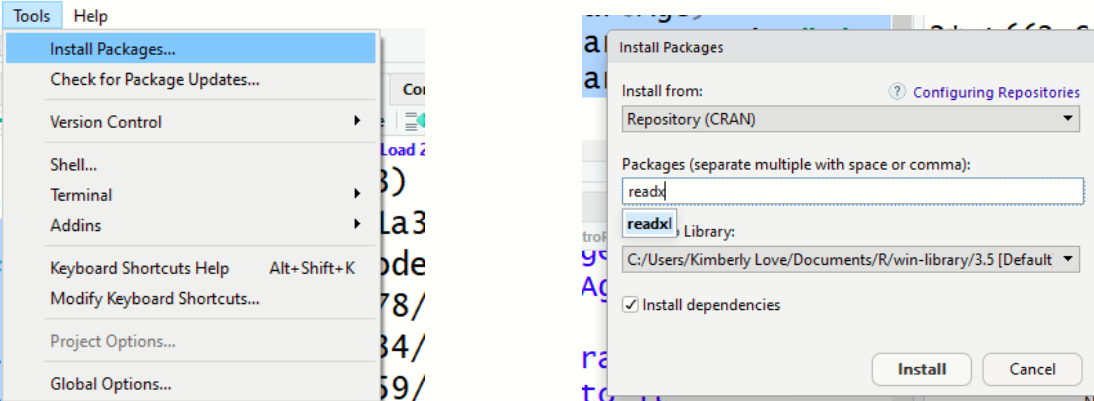
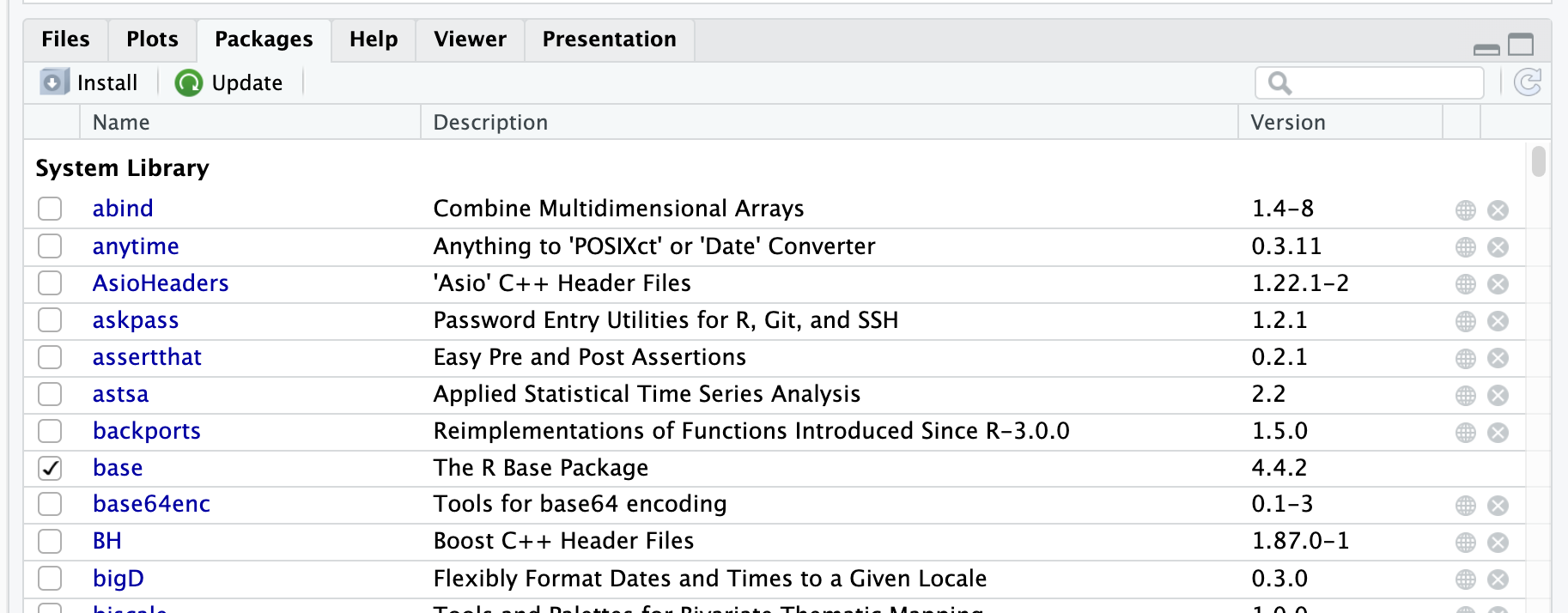
Installing Packages

  • Option 1: Code (Recommended)
    • Type install.packages("package_name") directly into the Console.
Code
install.packages("tidyverse")
install.packages("readxl") 
install.packages("writexl")
install.packages("labelled")
  • Option 2: Menu
  • Option 3: Packages Window

Loading Packages

  • Installing a package is a one-time setup to download it onto your computer.
  • Loading a package with library() is required in each new R session to use its functions.
Code
# LOAD (do this every time you start a new script)
library(tidyverse)
library(readxl)
library(writexl)
library(labelled)

Note

  • If you get an error like "there is no package called 'dplyr'", you need to install it first
  • Installation downloads the package; loading makes it available for use
  • Only need to install once, but must load in every new session or script

Getting Help

Code
?read_csv             # Help page for a function
help("lm")            # Alternative syntax
??survival            # Search across all installed packages

Reading and Writing data

  • Importing data is rather easy in R but that may also depend on the nature of the data to be imported and from what format.

  • Most data are in tabular form such as a spreadsheet or a comma-separated file (.csv).

  • Base R has a series of read functions to import tabular data from plain text files with columns delimited by: space, tab, and comma, with or without a header containing the column names.

  • With an added package it is also possible to import directly from a Microsoft Excel spreadsheet format or other foreign formats from various sources.

Importing from local files

  • In base R the standard commands to read text files are based on the read.table()function.

  • The following table lists the collection of the base R read functions.

  • For more details use the help command help(read.table) that will display help for all.

Details of dataset readings
Function name Assumes header Separator Decimal File type
read.table() No ” ” . .text
read.csv() Yes “,” . .csv
read.csv2() Yes “;” , .csv
read.delim() Yes “tab” . .text
read.delim2() Yes “tab” , .text

Read data: CSV and Excel

From A Comma Delimited Text File (csv files) to R

  • Using read_csv() from readr package
Code
library(readr)
mydata <- read_csv(file="mydata.csv")

Example:

Read data from the CDC’s Youth Risk Behavior Surveillance System (YRBSS)

Code
library(readr)
yrb_data <- read_csv("data/yrbss.csv")

From Excel to R: Using read_xlsx() from readxl package

Code
library(readxl)
mydata <-  read_xlsx(path="mydata.xlsx", sheet = 1)

Importing Data — Stata, SPSS, SAS

The haven package handles all major statistical software formats:

Code
library(haven)

# Stata
dhs_data <- read_dta("data/dhs_data.DTA")

# SPSS
spss_data <- read_sav("data/survey.sav")

# SAS
sas_data  <- read_sas("data/dataset.sas7bdat")

Data import wizard

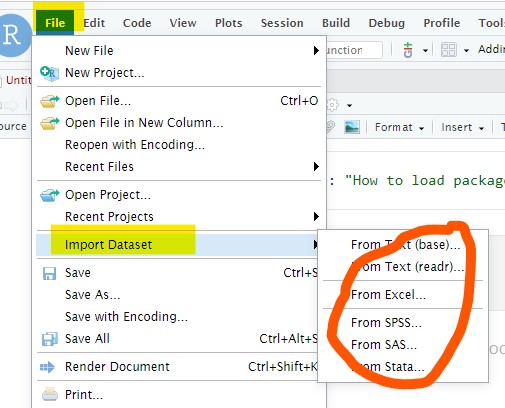
The data import wizard is a quick and easy way to import your data

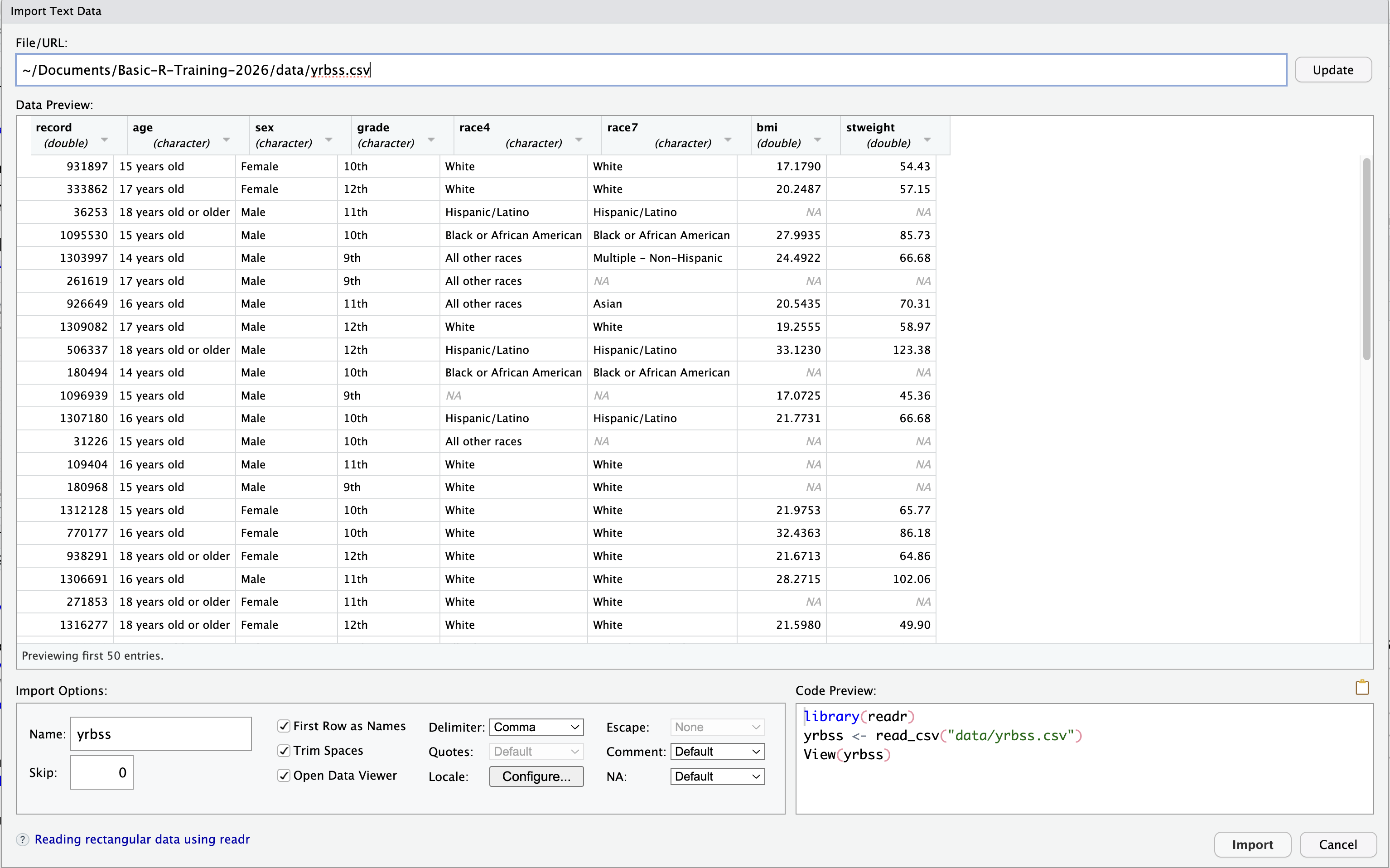
  • Inside the data wizard, you can copy the code from the code-preview window, then paste the code into the code chunk of your r script or quarto document.

Composing the data import code…

Writing the import data function can be tricky. Try the import wizard pictured above. THEN, paste the code from the Code Preview section into your script.

Easily write import data function

Exporting Data

R to csv: Use readr package

Code
library(readr)
write_csv(data, "data/mydata.csv")

R to a text file:

Code
write.table(data, "mydata.txt", sep="\t")

R to Excel: The readxl package is for reading Excel files only. For writing to Excel, the writexl package is a great modern and simple option.


Code
library(writexl)
write_xlsx(data, "data/mydata.xlsx")

R to Stata, SPSS, and SAS: Use haven library

Code
library(haven) 
write_dta(data, "data/mydata.dta")
write_sav(data, "data/mydata.sav")
write_sas(data, "data/mydata.sas7bdat")

Example

Export imported yrb_data data to different formats

Code
library(readr)
library(writexl)
library(haven)
yrb_data <- read_csv("data/yrbss.csv")
write_csv(yrb_data, "data/yrb_data.csv")
write_xlsx(yrb_data, "data/yrb_data.xlsx")
write_dta(yrb_data, "data/yrb_data.dta")
write_sav(yrb_data, "data/yrb_data.sav")
# write_sas(yrb_data, "data/yrb_data.sas7bdat")
write_xpt(yrb_data, "data/yrb_data.sas7bdat")

Exercise: Importing and Exporting Data

  1. Export birthwt data (from R package MASS) as a CSV file named "birthwt.csv" and an SPSS file named "birthwt.sav" in your data folder.
  2. Import the exported birth weight data (birthwt.csv) as infant_birthwt.
  3. Import the exported SPSS file (birthwt.sav) as infant_birthwt_sav.